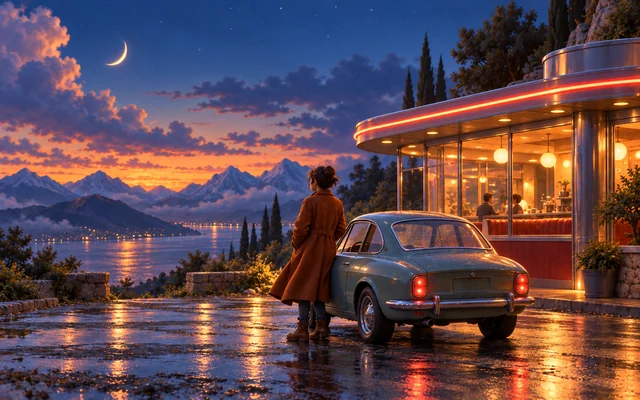
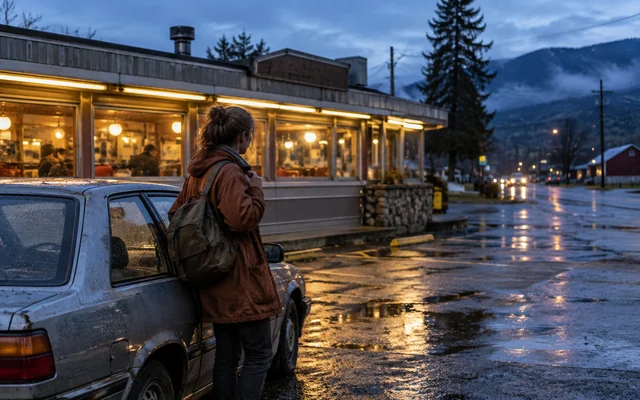
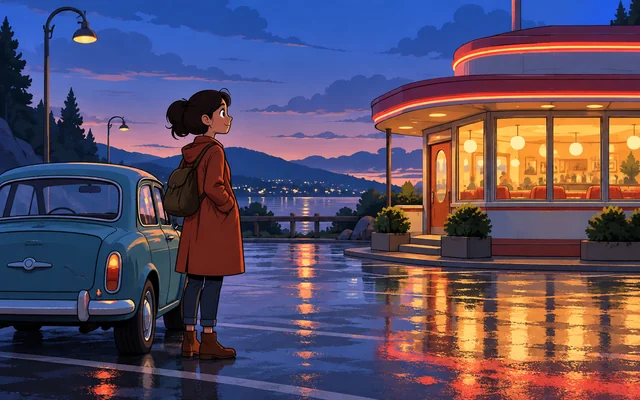
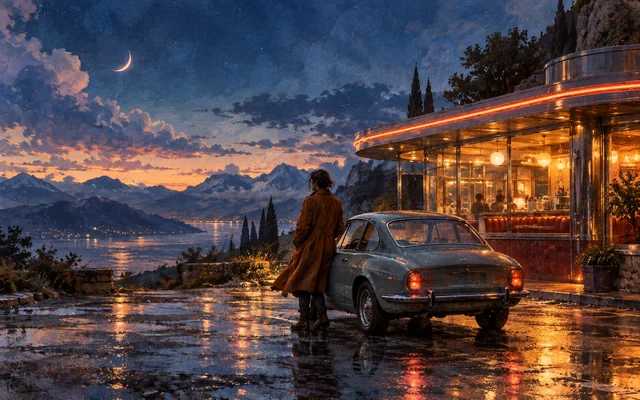
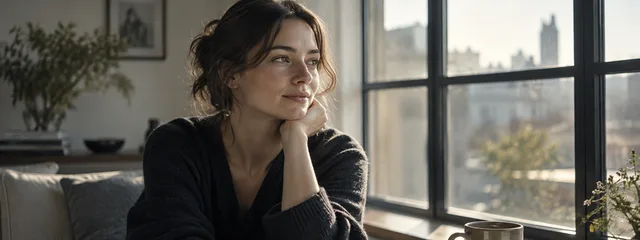
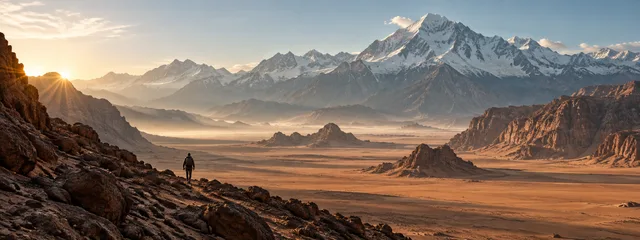
Imagine it. AI writes, shoots, scores, and voices it. You direct.

Maginema is an AI movie studio. Start from an idea, a treatment, or a single prompt: AI drafts the screenplay and generates the shots, music, voices, and subtitles, while you shape every scene in a real editor.

Available on
  • Web
  • macOS
  • Windows
  • Linux
  • iPad
  • Android
Scroll

Free to use.Top up or bring your AI.

  • Or your own AIAlready pay for an AI service? Connect your account and generate on your own plan.

Or connect the AI you already use

  • Google Gemini
  • OpenAI
  • ElevenLabs
  • Runway
  • fal
  • Replicate
  • Higgsfield
  • BytePlus ModelArk
  • OpenRouter
  • Topaz Labs
  • HeyGen

How it works

The screenplay is the source of truth.

Maginema reads your script the way a crew does. Characters, locations, props, camera moves, and lighting become reusable production elements, and every generated shot follows them.

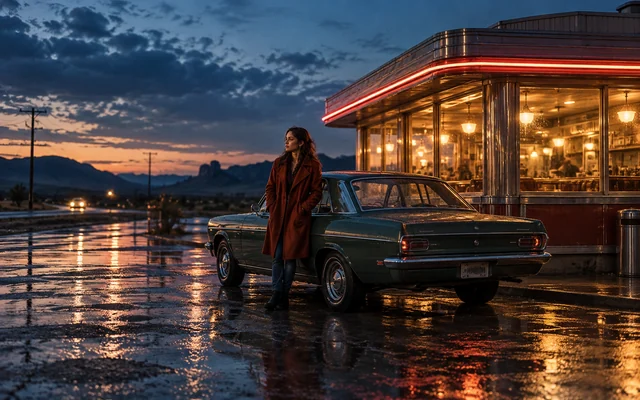
EXT. ROADSIDE DINER · NIGHT

Rain-slick asphalt mirrors the neon. A vintage sedan idles by the curb.

MAYA (30s), in a red wool coat, steps out and stares at the glowing windows.

MAYA

One more cup. Then we drive till sunrise.

Slow push-in.Warm neon against blue dusk.

  • LocationRoadside diner
  • CharacterMaya
  • WardrobeRed wool coat
  • PropVintage sedan
  • CameraSlow push-in · 35mm film
  • LightingWarm neon, blue dusk
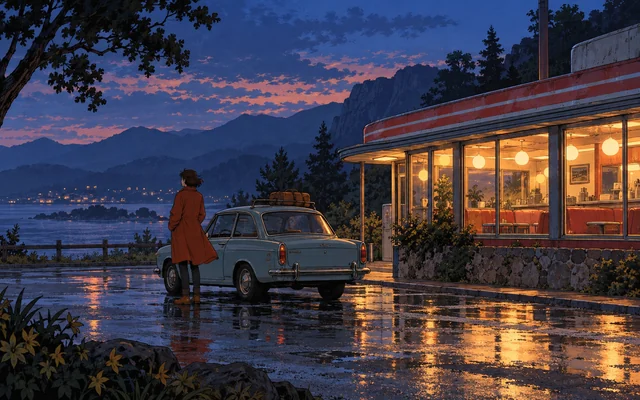
A woman in a red coat outside a neon-lit roadside diner at dusk, beside a vintage carScene 12 · Version 3 of 3
A generated shot for the scene above.
  1. 01

    Write or adapt

    Start from a synopsis, adapt a story or treatment, or write from scratch. Review every AI draft before it becomes your screenplay.

  2. 02

    Build the world

    Cast characters, scout locations, dress wardrobes, and lock a visual style so every scene looks like the same film.

  3. 03

    Generate and cut

    Generate scenes, keep the versions you like, and shape them on a timeline with sound, transitions, and subtitles.

Continuity

Same cast. Same world. Every shot.

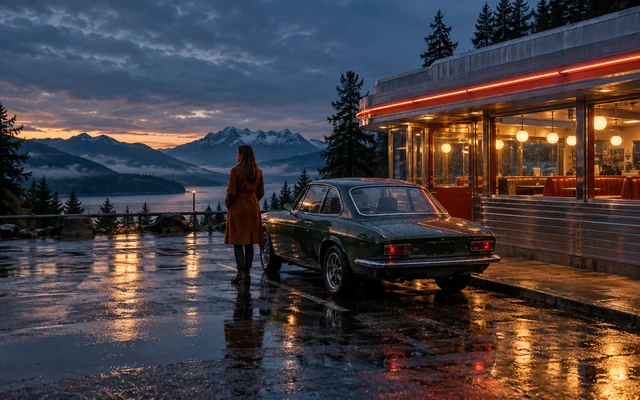
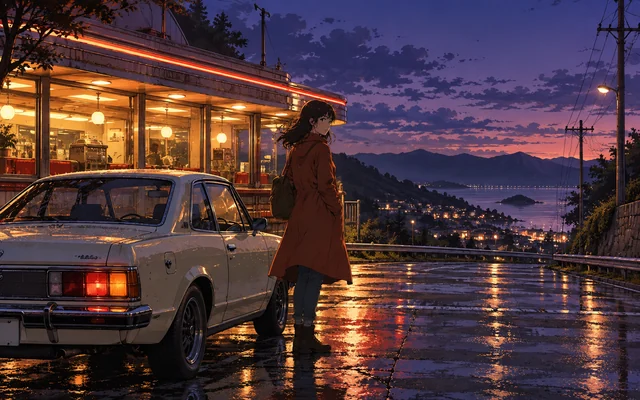
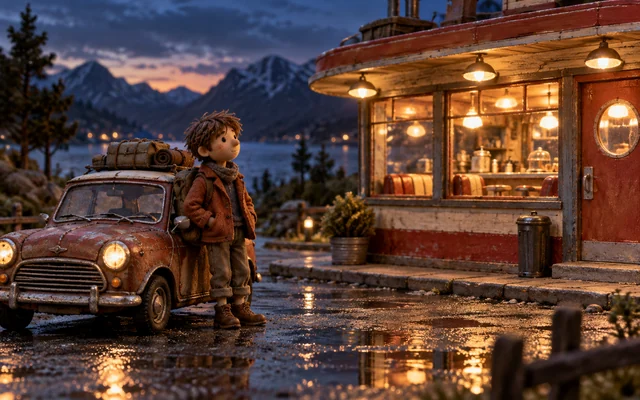
Consistency is where AI movies fall apart. Describe your characters, wardrobes, locations, and props once, attach reference images, and every scene is generated from the same production bible, in whatever style you choose.

A generated scene of Maya in her red wool coat beside her vintage sedan at a roadside diner, linked to the character, wardrobe, prop, location, and camera references it was generated from, in the selected visual style.
MayaCharacter
Red wool coatWardrobe
Roadside dinerLocation
Vintage sedanProp
Alexa 35 · 35mmCamera & lens
  • A production bible

    Reusable catalogs of characters, wardrobes, locations, and props, each with a description and generated or uploaded reference images.

  • References in every shot

    Each scene is generated with the descriptions and reference images of the cast, outfits, location, and props it contains.

  • One look, locked

    Set the style, color direction, camera and lens, aspect ratio, resolution, and frame rate per episode. Override the camera only where a scene needs it.

  • Seamless cuts

    Continue a scene from the previous scene's last clip so the action carries across the cut.

Editing

A real editor. Not just a prompt box.

Arrange and trim clips on a timeline, add transitions and overlays, layer music, effects, and narration, then generate subtitles in the languages you need.

An editor preview: four generated clips on a video track with transitions, a title overlay, dialogue, music, and sound-effect tracks, and English subtitles playing in sync.

Features

From first draft to final cut.

Four acts, one studio. Everything a production needs, in the order you need it.

  1. Act I

    Develop the story

    • Start from a synopsis, adapt an existing story or treatment, or write from scratch.
    • Review and revise AI story drafts before they become a screenplay.
    • Make a single movie, or grow it into a series of episodes.
    • Edit any scene directly: action, dialogue, cast, locations, props, camera movement, and lighting.
    • Generate a synopsis from an existing screenplay.
  2. Act II

    Generate the picture

    • Generate scenes from prompts, or use an uploaded video or an existing clip as a scene.
    • Create standalone clips from a prompt, with optional image or video references.
    • Batch-generate missing scenes and keep every version to choose from.
    • Regenerate or extend a clip, or edit it with a text instruction on supported models.
    • Add transitions: effects, still media, or AI-generated interpolation.
  3. Act III

    Finish with sound

    • Generate music, sound effects, and spoken narration, or import your own audio.
    • Place and trim overlapping audio tracks alongside the picture.
    • Change or isolate a clip's voice when a compatible provider is connected.
    • Add text, image, and video overlays.
    • Generate subtitles in the languages you choose, download SRT files, and refresh them after edits.
  4. Act IV

    Release the premiere

    • Export movies and clips as MP4.
    • Generate posters for the project and each episode.
    • Embed subtitle tracks, or burn one into the picture.
    • Upscale an export when a compatible provider is connected.
    • Preview and download every generated asset and finished export from a local catalog.

Your studio

Your files. Your models. Your call.

Make movies anywhere

Open Maginema in your browser, or install the app on your Mac, Windows or Linux computer, iPad, or Android device.

Pick the right model for every task

Choose among connected AI services and models for writing, images, video, and sound, with generation costs shown before you spend.

Optional cloud sync

Connect S3 or compatible storage for backups and synchronization.

Take everything with you

Download a complete project archive, media included, and import it later.

Roll
camera.

Your next film starts with a single line. The studio is free, so bring your own AI and write it tonight.